PC Controls by Combat State
Standing and striking
| Input | Action |
|---|---|
| W / A / S / D | Move forward / left / backward / right. |
| Left mouse / right mouse | Control the left / right arm using your selected arm mode. |
| R + mouse click | Throw a hook with Simple Arm. |
| C + mouse click | Throw an uppercut with Simple Arm. |
| Q / E | Control the left / right kick outside grab mode. For mouse-guided kicks, hold the key and move the mouse. |
| G | Enter grab mode and extend both arms. |
| X | Tackle: dive in your movement direction. |
| Space | Jump. |
| LeftShift | Lean. |
| LeftAlt | Toggle camera view. |
| Hold Z | Open the Taunt wheel. |
Grab mode
| Input | Action |
|---|---|
| Hold left mouse / right mouse + move mouse | Aim the corresponding hand; contact establishes a grip. |
| Q / E | Toggle the left / right hand's punching mode. |
| Hold R / T + move mouse | Guide the left / right leg. |
| G | Release all grips. |
| Space / Get Up | Reset the held pose. |
On the ground
| Input | Action |
|---|---|
| WASD + mouse aim | Crawl or turn. |
| Left mouse / right mouse | Use either arm normally; a grip is optional for ground strikes. |
| Space | Request getting up. |
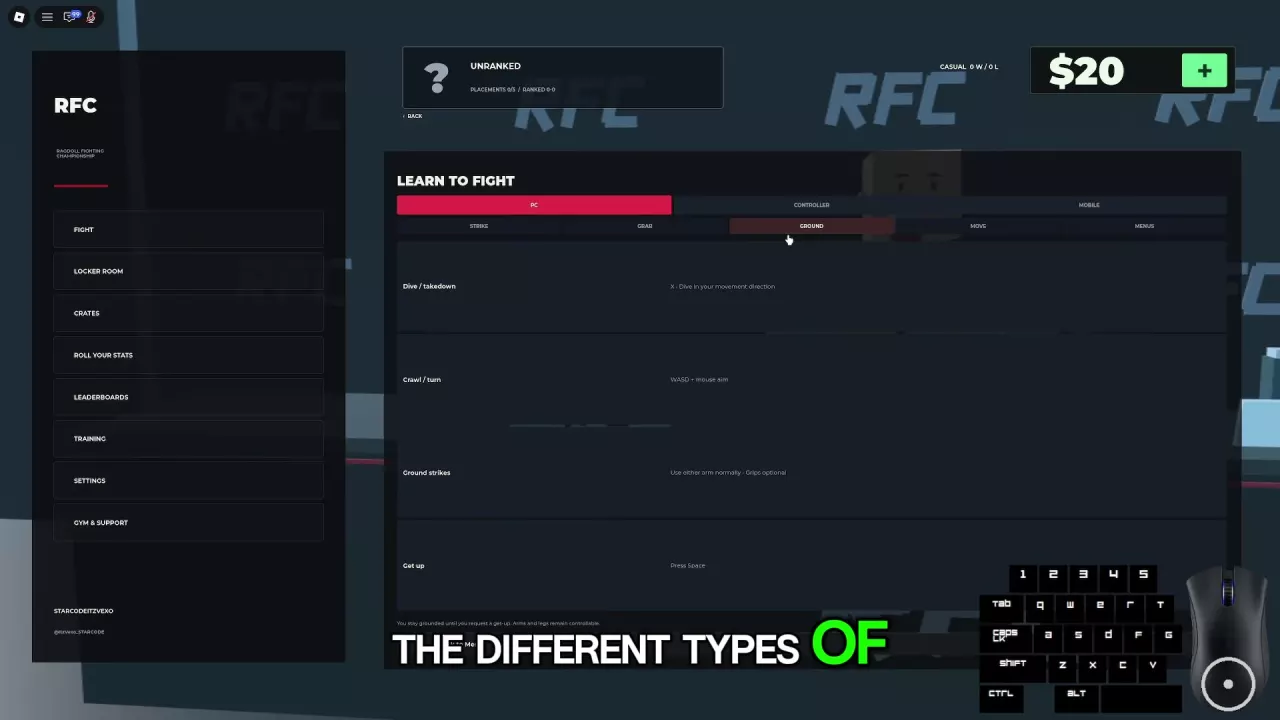
You stay grounded until you request a get-up, with your arms and legs still controllable. For positioning and attack angles, see the ground combat guide.
Simple Arm or Full Arm?
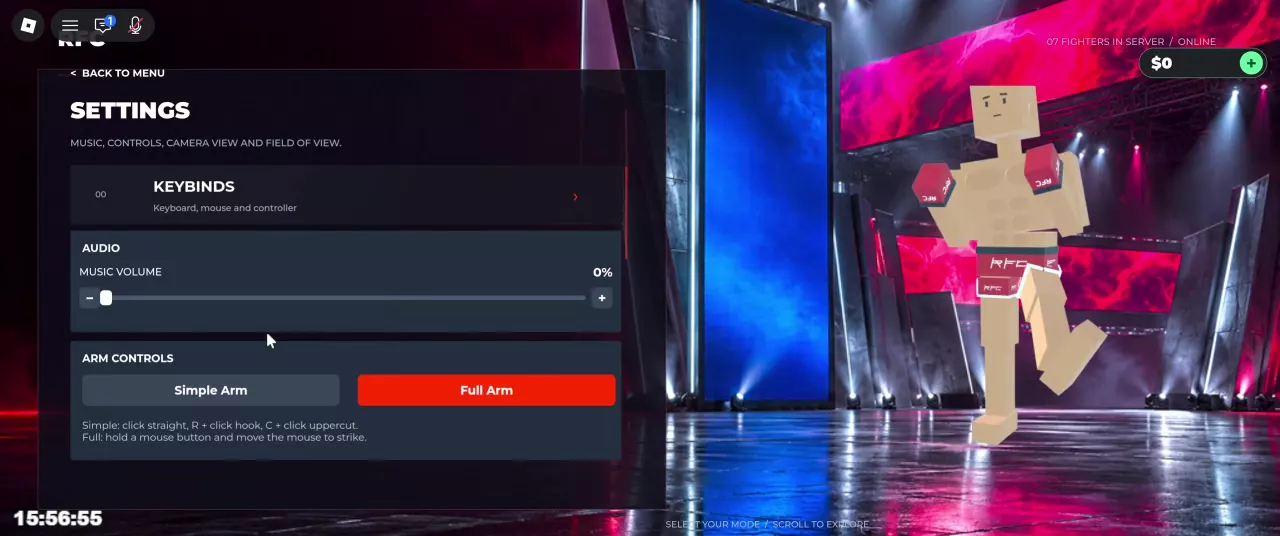
Open Settings → Arm Controls and select Simple Arm or Full Arm. The left mouse button controls your left arm, and the right mouse button controls your right arm.
| Punch | Simple Arm | Full Arm |
|---|---|---|
| Jab / straight | Click the corresponding mouse button. | Hold the corresponding mouse button and move the mouse upward. |
| Hook | Hold R and click. | Hold the corresponding mouse button and move the mouse sideways. |
| Uppercut | Hold C and click. | Hold the corresponding mouse button and move the mouse downward. |
- Choose Simple Arm if you prefer clicking to attack. You select the punch with a modifier key instead of guiding its direction with the mouse.
- Choose Full Arm if you prefer manually guiding each arm. Your held mouse button selects the arm, and mouse movement directs the punch.
When one hand maintains a grip and the other switches to punching, the punching hand still follows your selected arm mode. Try the inputs in training or Practice to decide which feels easier to control.
Standing Kicks and Grab-Mode Leg Controls
Settings includes Simple Leg and Full Leg options. For mouse-guided standing kicks:
- Leave grab mode.
- Hold Q for the left leg or E for the right leg.
- Move the mouse sideways to sweep the leg, or vertically to adjust kick height.
- Release the key to retract the leg.
In grab mode, use R for the left leg or T for the right leg instead. Hold the key and move the mouse to guide that leg. A quick sweep can strike, while slower movement lets you position the leg for a submission setup. Releasing the control keeps the pose; Space / Get Up resets it.
Use the striking guide for kick timing and distance, or the grappling guide for leg positioning during holds.
Keep, Reposition, or Release a Grip
Grabbing requires hand contact. Entering grab mode makes your arms reach, but you still need to guide a hand onto the opponent.
| Goal | Input and result |
|---|---|
| Reach for a grip | Press G to extend both arms. |
| Establish contact | Hold the corresponding mouse button and move the mouse to aim that hand onto the opponent. |
| Keep the grip | Release the mouse button; the grip can remain held. |
| Reposition the hand | Press that mouse button again and guide the hand. |
| Punch with the other hand | Use Q for the left hand or E for the right hand to switch that hand to punching. |
| Release everything | Press G to release all grips. |
Maintaining a grip does not lock your camera. Holding a limb-control input does. Release the input while keeping the grip when you want to look around without actively guiding that limb.
With two grips, looking up lifts and looking down slams. See grabs, slams, and joint pressure for how to use those controls in a grapple.
Use the Taunt Wheel
- Hold Z to open the Taunt wheel.
- Hover over the taunt you want.
- Release Z to select it.
Move to cancel the taunt. The Taunt wheel is separate from the post-fight celebration options in fighter customization.
Find Device Guides and Camera Settings
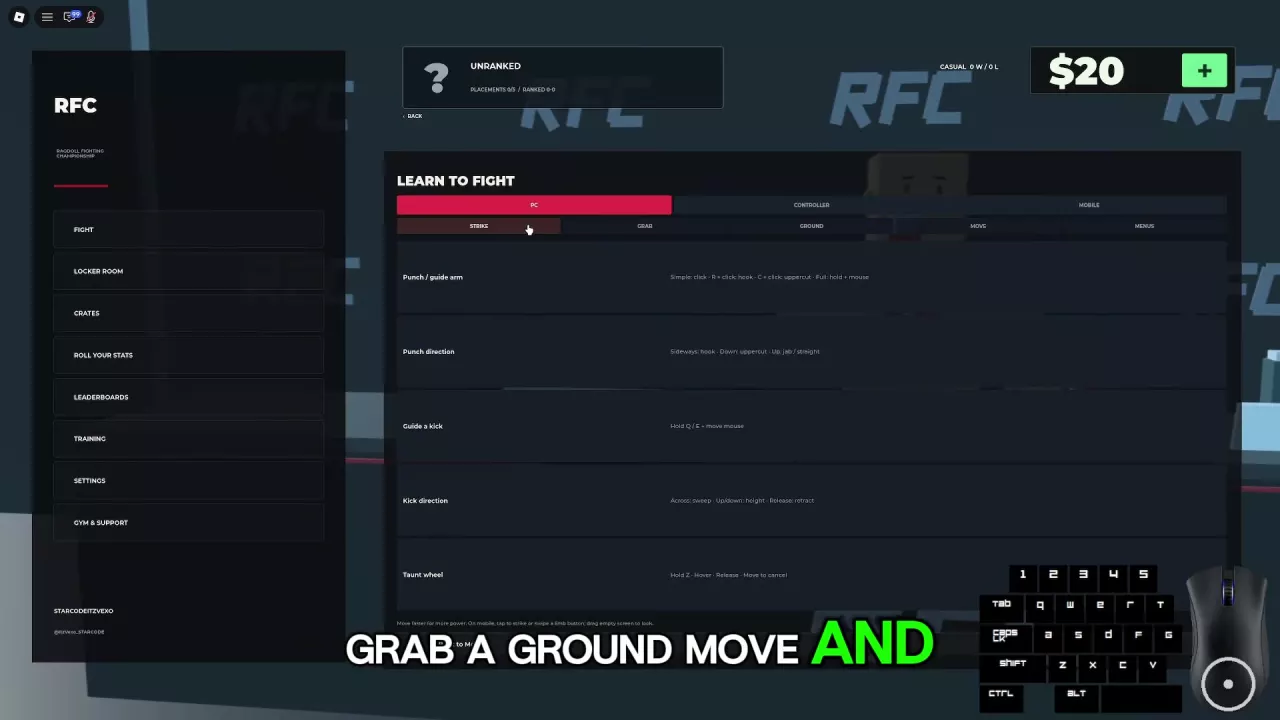
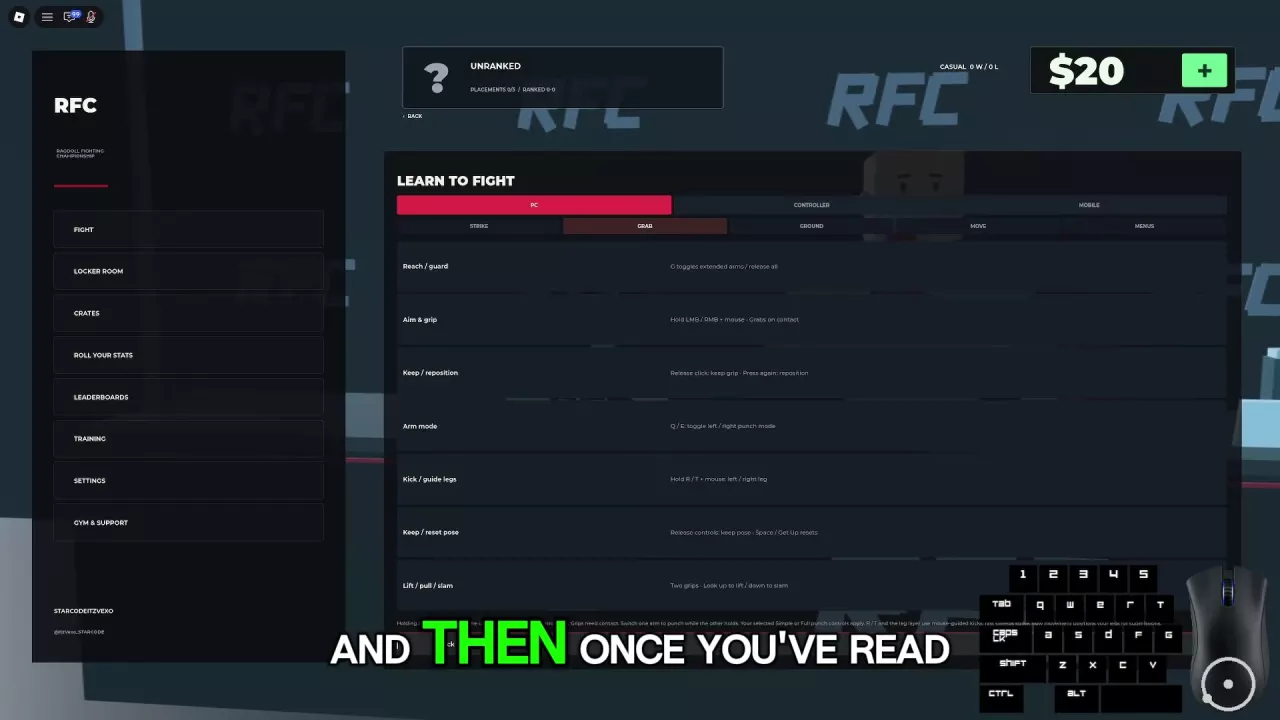
Ragdoll MMA supports PC and controller play. To open the in-game reference:
- Open Training → Learn to Fight → Controls Guide.
- Choose the PC, Controller, or Mobile category.
- On PC, select Strike, Grab, Ground, Move, or Menus for the relevant controls.
You can also open Settings → Keybinds for the keyboard, mouse, and controller reference.
Press LeftAlt during play to toggle the camera view. For menu-based view selection, FOV, sensitivity, and music controls, see camera and audio settings.
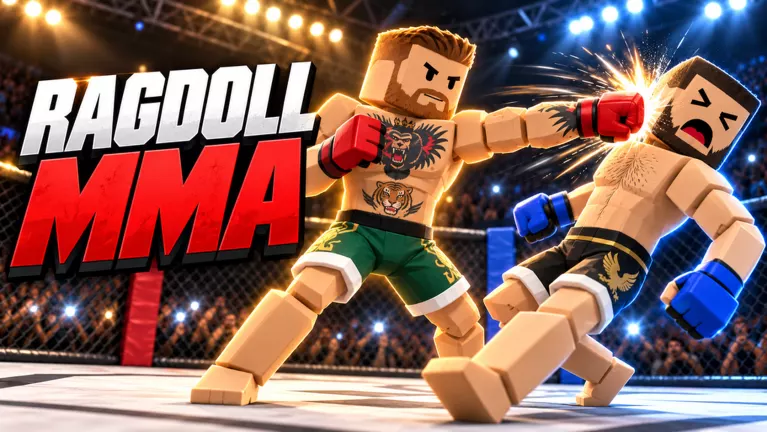
Ragdoll MMA Camera, Sensitivity, and Audio Settings
Change Ragdoll MMA camera settings, switch to first person, adjust FOV and sensitivity, understand camera locking, and turn off music.
Ragdoll MMA Striking Guide: Punches, Kicks, and Defense
Learn Ragdoll MMA punch controls, guided kicks, and jump kicks. Improve contact with better positioning, hit feedback, and patient counterattacks.
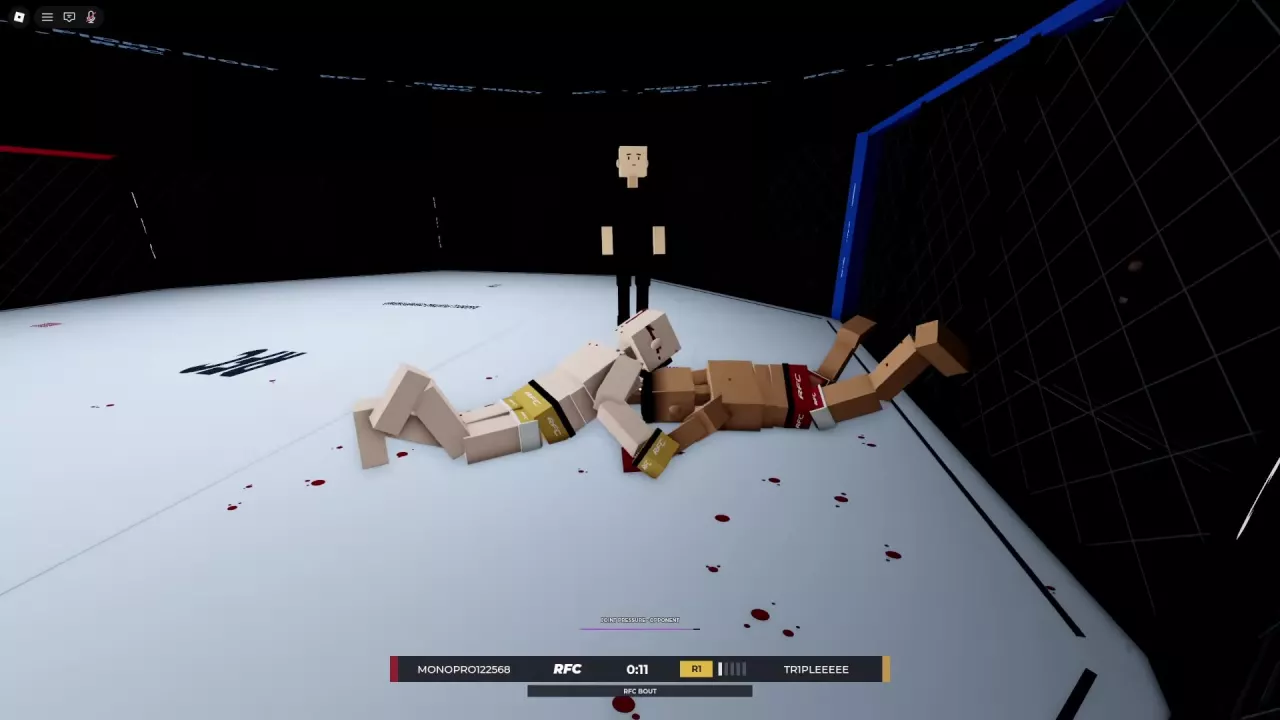
Ragdoll MMA Grappling Guide: Grabs, Slams, and Joint Pressure
Learn how to grab, reposition, release, and slam in Ragdoll MMA, plus leg takedown attempts, submission positioning, and joint-pressure warnings.
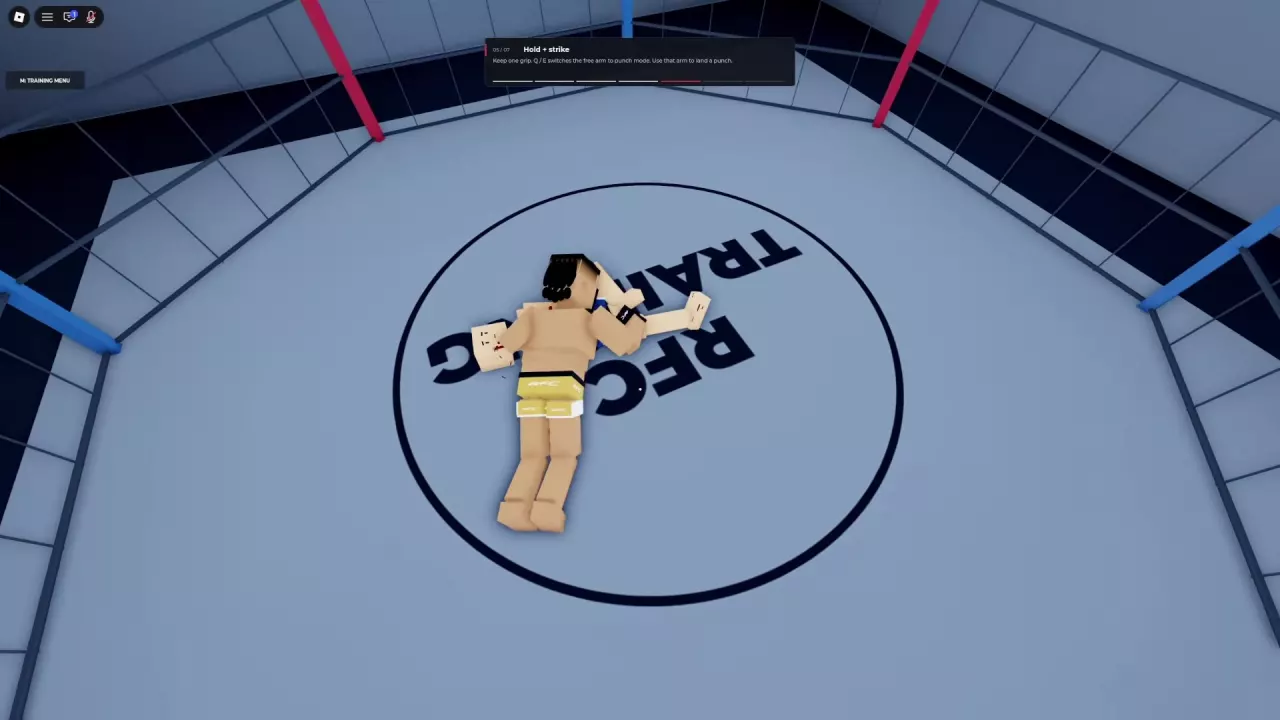
Ragdoll MMA Ground Combat: Strike, Reposition, and Get Up
Learn Ragdoll MMA ground combat controls: crawl, turn, punch while holding, guide both legs, and get up. Find better angles and understand weight penalties.
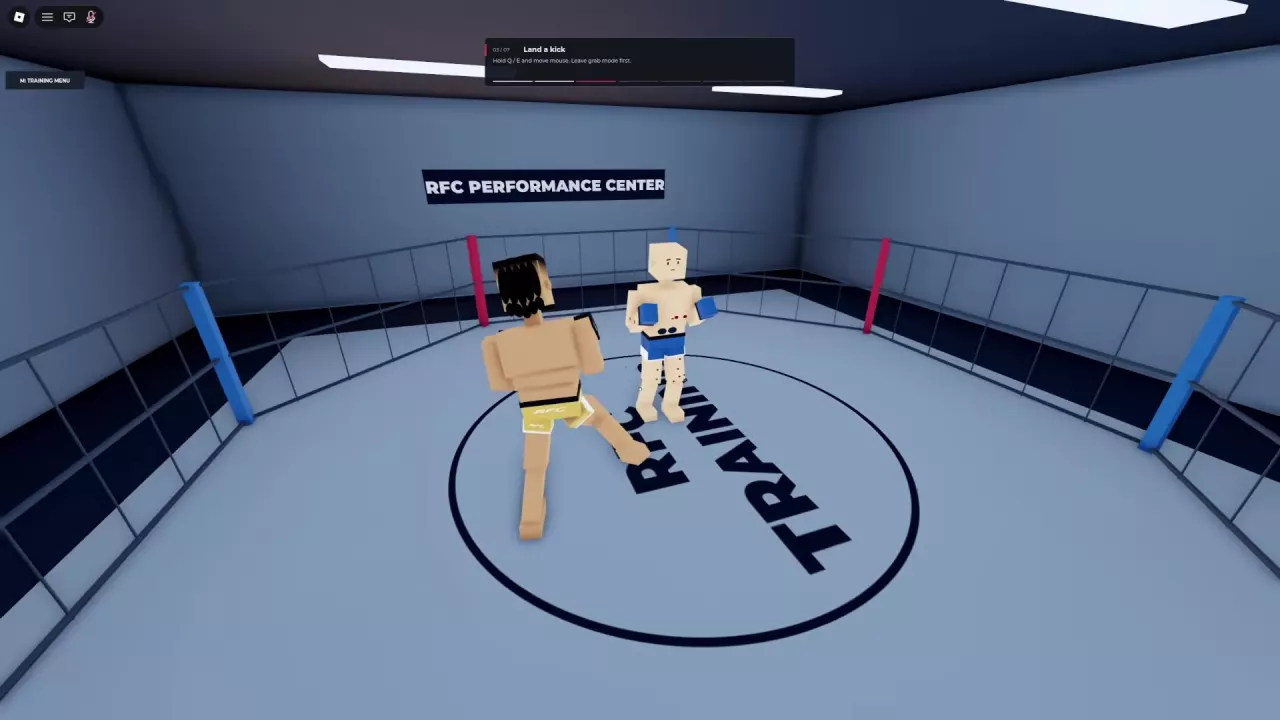
Ragdoll MMA Training: Lessons, Practice, and Bots
Choose Ragdoll MMA training activities, complete punch, kick, grip, and leg-control lessons, practice on punching bags, and fight Easy, Medium, or Hard bots.
Ragdoll MMA Fighter Customization: Gear, Tattoos, Jewelry, and Celebrations
Customize your Ragdoll MMA fighter with five gear collections, colors, tattoos, jewelry, and three celebrations. Learn required unlocks and how to save your look.